Are you frustrated by video file format incompatibility, or is your hard drive space being rapidly consumed by large, uncompressed files? Converting from MOV to MP4 for universal playback, or batch converting H.264 to the more efficient H.265 (HEVC) to save storage, are common challenges. Users' primary concerns are how to batch apply presets and how to compress file sizes to the minimum without a visible loss in quality.
This tutorial focuses on MeowLoad's "Batch Modify Video Format" feature. It provides an intuitive interface that allows you to uniformly set transcoding parameters and target formats for videos across an entire folder. We guide you on how to use the batch conversion function to quickly resolve compatibility issues and achieve highly efficient video compression, freeing up your valuable storage space.

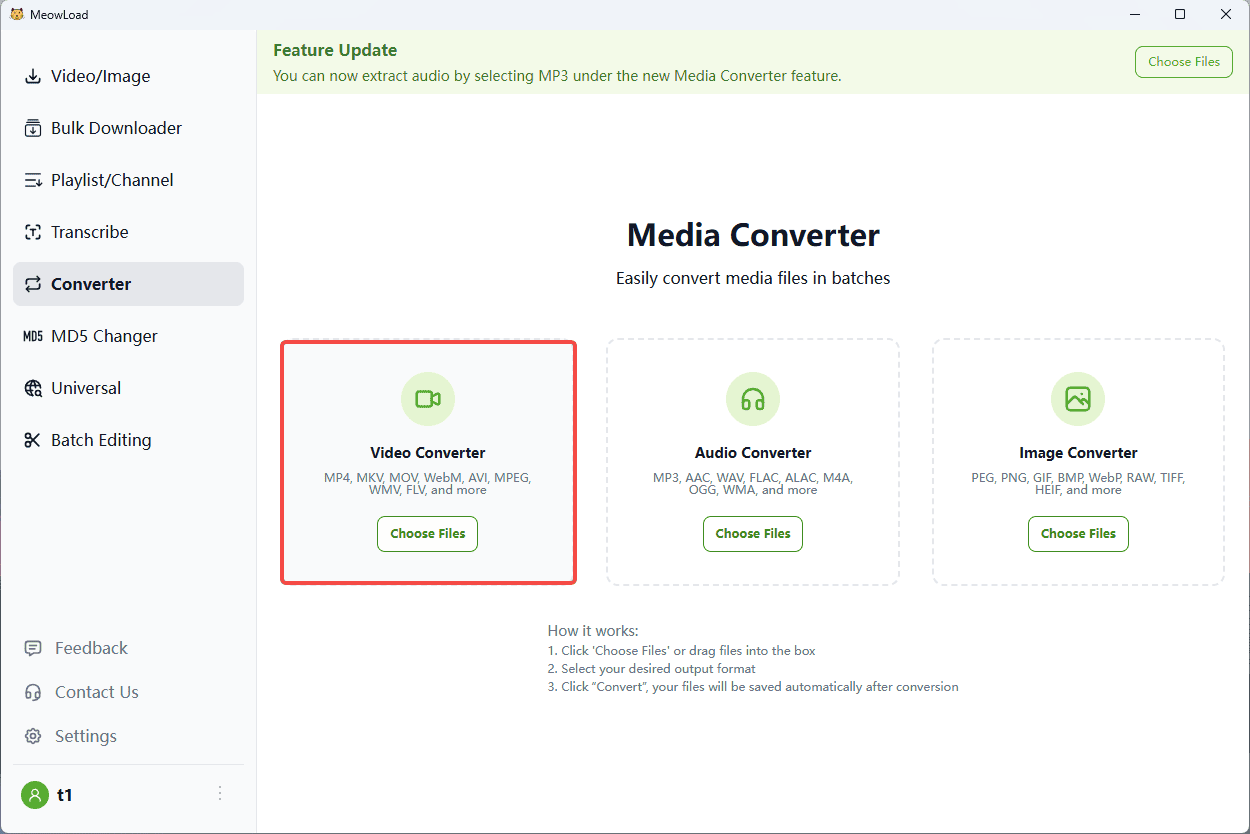
Step 1: Upload Files
Add your videos by clicking the upload zone or dragging them in.
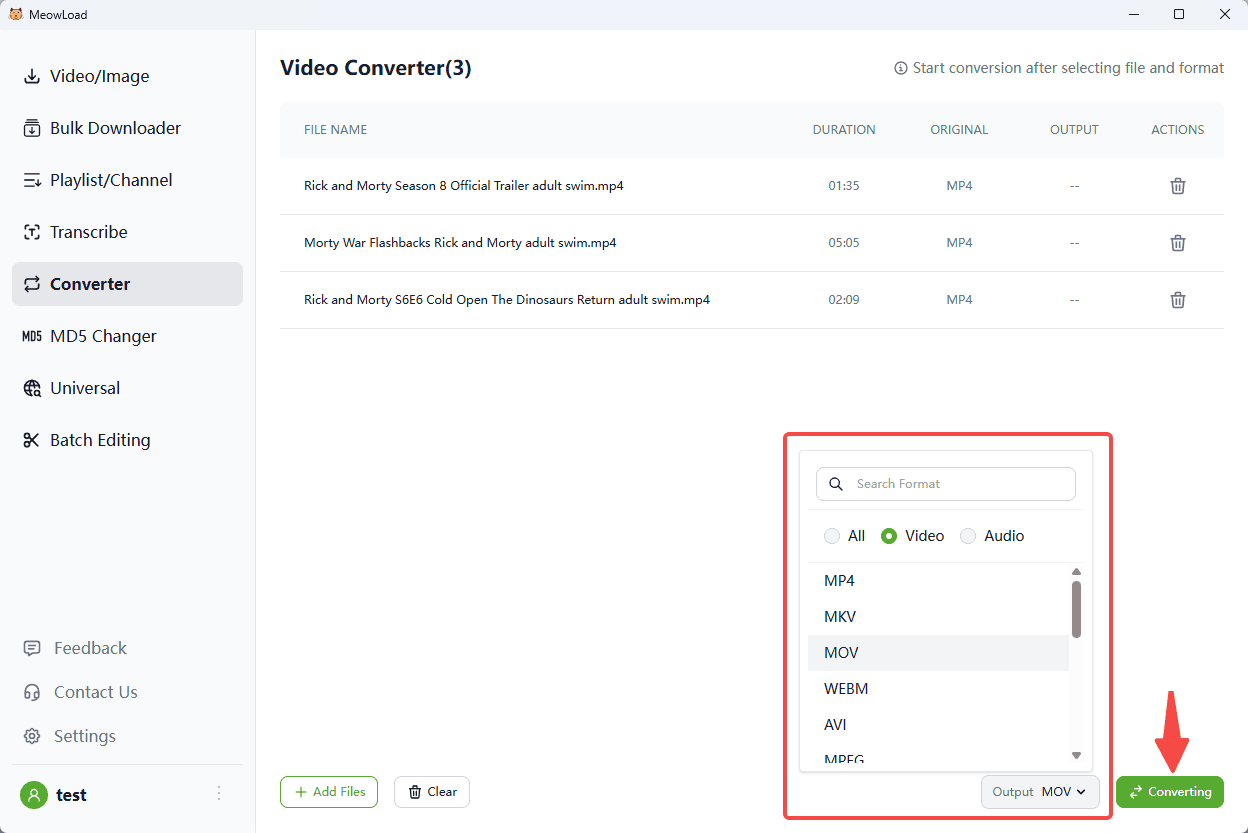
Step 2: Select Output Format
Choose your target format (e.g., MP4, MP3, MOV) from the dropdown menu.


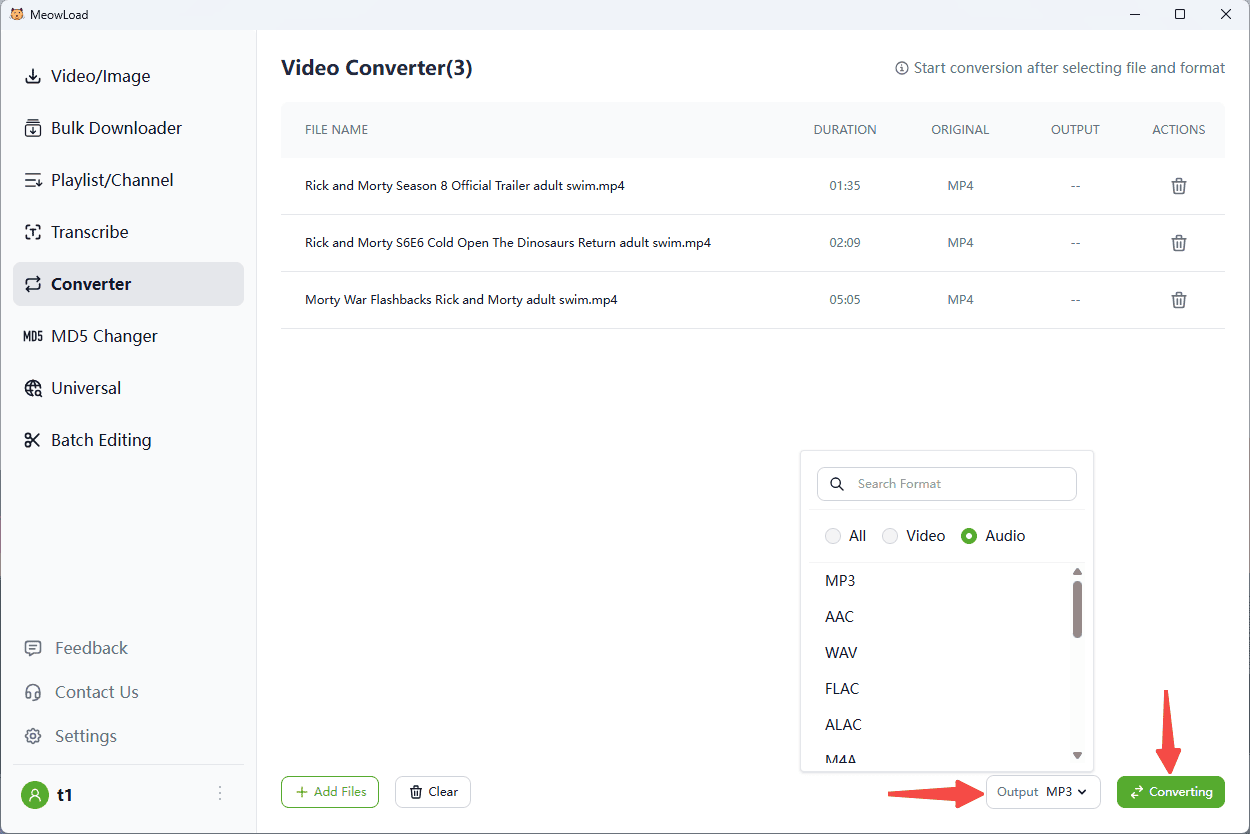
Step 3: Start Conversion
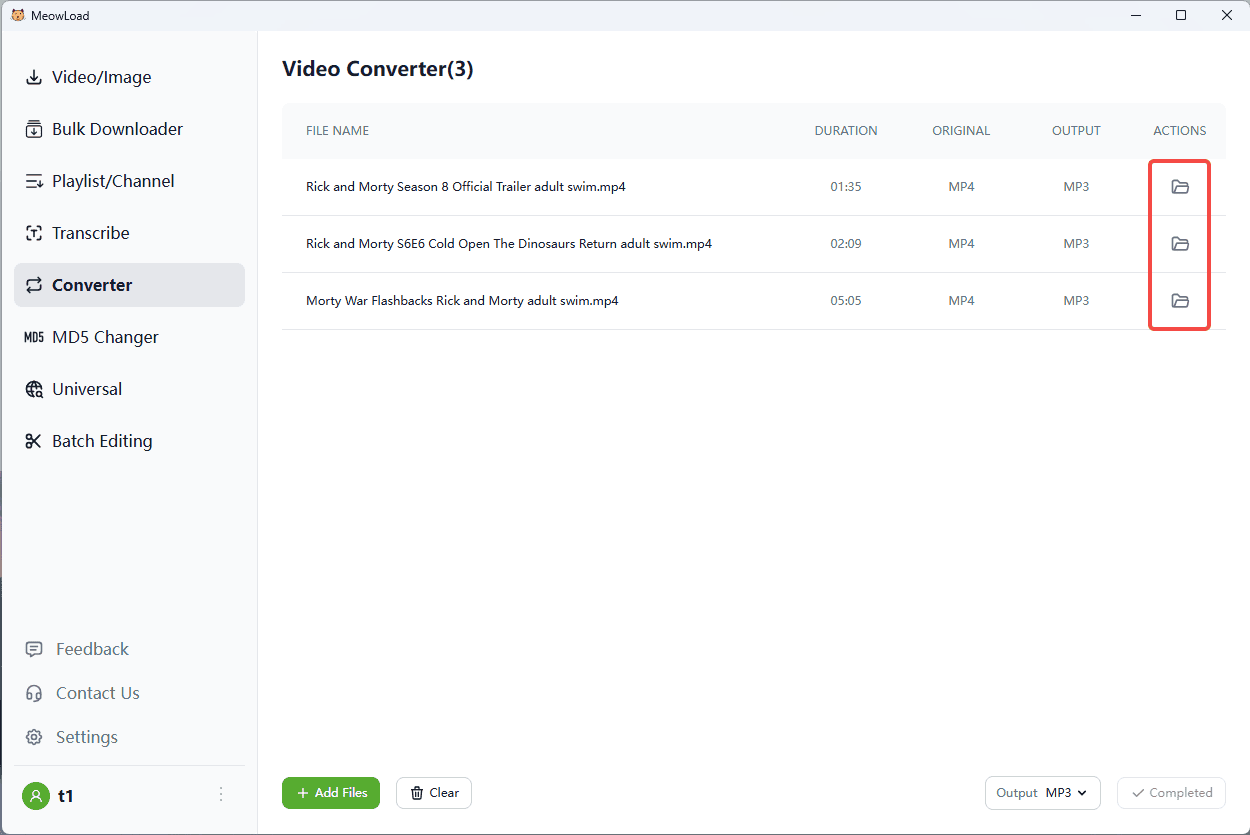
Click Converting to process all files. Your videos will be saved to the output folder automatically.